

Minecraft is a beloved sandbox game that allows players to create, explore, and survive in a blocky world. One of the best aspects of Minecraft is its multiplayer functionality, enabling friends to join together for cooperative gameplay. However, with multiple versions available across various platforms, many players find themselves wondering how to connect with friends who may be playing on different devices. In this article, we’ll explore how to play Minecraft with friends on different platforms, including cross-play options, tips for setting up servers, and more.
Understanding Minecraft Editions
Before diving into the specifics of playing with friends across platforms, it’s essential to understand the two primary editions of Minecraft:
- Minecraft Bedrock Edition: This version is available on multiple platforms, including Windows 10, Xbox One, Nintendo Switch, PlayStation 4, iOS, and Android. One of the key features of Bedrock Edition is its ability to support cross-play, allowing players on different devices to play together seamlessly.
- Minecraft Java Edition: Exclusively available for Windows, macOS, and Linux, this version is known for its extensive modding capabilities and dedicated community. However, it does not support cross-play with Bedrock Edition players.
To play together, you and your friends will need to ensure that you are using compatible versions of the game. If you are playing on Bedrock Edition, you can connect with friends across various platforms. However, if you are playing Java Edition, you can only join friends who are also using Java Edition.
Setting Up Cross-Play in Minecraft Bedrock Edition
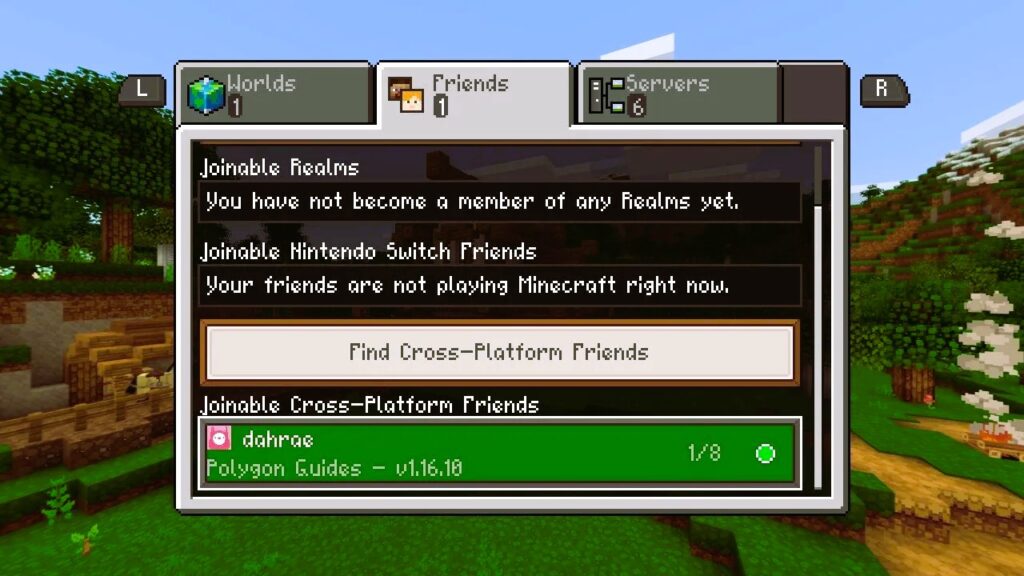
If you and your friends are using Bedrock Edition, here’s how to set up cross-play:
1. Sign In to Your Microsoft Account
To enable cross-play in Minecraft Bedrock Edition, all players must sign in to a Microsoft account. This account is required for online multiplayer features. If you don’t have one, you can create a free account on the Microsoft website.
2. Add Friends
Once signed in, you can add friends to your friends list:
- From the main menu, select Play.
- Go to the Friends tab.
- Choose Add Friend and enter your friend’s Microsoft account username (Xbox Live Gamertag) or email address.
After adding friends, you should see them appear in your friends list, allowing you to join their games or invite them to yours. Did you like the article? Read also about Archaeology in Minecraft.
3. Create or Join a World
You can either create a new world or join an existing one. Here’s how:
- Creating a New World:
- From the main menu, select Play and then choose Create New.
- Adjust your world settings (game mode, difficulty, etc.) and ensure that Multiplayer is enabled.
- After creating the world, your friends can join by selecting your world from the Friends tab.
- Joining a Friend’s World:
- From the Friends tab, locate your friend’s active game.
- Click on the game to join.
4. Using Realms for Persistent Worlds
If you want a more consistent multiplayer experience, consider using Minecraft Realms. Realms are private servers hosted by Mojang, allowing you to create a persistent world that you and your friends can access anytime.
- To set up a Realm:
- From the main menu, select Play and go to the Realms tab.
- Choose Create Realm and follow the prompts to set it up.
- Invite your friends to join your Realm, and they can access it anytime.
Playing with Friends on Minecraft Java Edition
If you and your friends are using Java Edition, the process for connecting with friends is slightly different:
1. Check Version Compatibility
Ensure that all players are running the same version of Java Edition. The game updates frequently, so it’s crucial that everyone is on the same version to avoid compatibility issues.
2. Setting Up a Server
To play together, you’ll need to set up a server. Here’s how:
- Creating a Local Server:
- Launch the Minecraft Java Edition and create a new world in single-player mode.
- Press Esc, then select Open to LAN.
- Choose your game settings and click on Start LAN World. Your friends can join by entering your IP address and the port number displayed on the screen.
- Using Third-Party Hosting Services:
- Alternatively, you can use third-party server hosting services like Aternos, Apex Hosting, or Shockbyte. These services allow you to create a server that your friends can join anytime.
- Follow the instructions provided by the hosting service to set up your server.
3. Inviting Friends
To invite friends to your Java Edition server:
- If you created a local server, share your public IP address with your friends (you can find this by searching “What is my IP” on Google). Ensure they use the correct port number if needed.
- If you’re using a third-party hosting service, provide your friends with the server IP address and port.
4. Joining a Server
To join a server in Java Edition:
- Launch the game and click on Multiplayer.
- Click on Add Server and enter the server IP address.
- Click Done, and the server will appear in your list. Select it and click Join Server.
Conclusion
Playing Minecraft with friends on different platforms is entirely possible, especially with the cross-play capabilities of Bedrock Edition. Whether you choose to create your own server, utilize Realms, or join a friend’s world, the multiplayer experience in Minecraft offers endless opportunities for adventure and creativity. If you and your friends are on Java Edition, setting up a server provides a fun way to connect and explore together.
By understanding the differences between the two editions and following the steps outlined in this article, you can enjoy countless hours of fun with friends, regardless of the platform they are using. For more detailed information about Minecraft and its features, visit the Minecraft Wiki. Happy crafting!