

Setting up your own Minecraft server can be a rewarding experience, allowing you to create a unique gaming environment tailored to your preferences. Whether you want to play with friends or host a larger community, this guide will take you through the process of creating your own Minecraft server step-by-step.
Step 1: Prepare Your System
Before diving into the technical aspects of server setup, ensure your system meets the minimum requirements to run a Minecraft server. Here’s what you need:
- A Computer: A dedicated machine is recommended, but you can also run it on your gaming PC.
- Java: Minecraft servers run on Java, so ensure you have the latest version installed. You can download it from the official Java website.
- Internet Connection: A stable and fast internet connection is crucial for smooth gameplay.
- RAM: Allocate enough RAM for the server. A minimum of 2 GB is recommended for a small server.
Step 2: Download the Minecraft Server Software
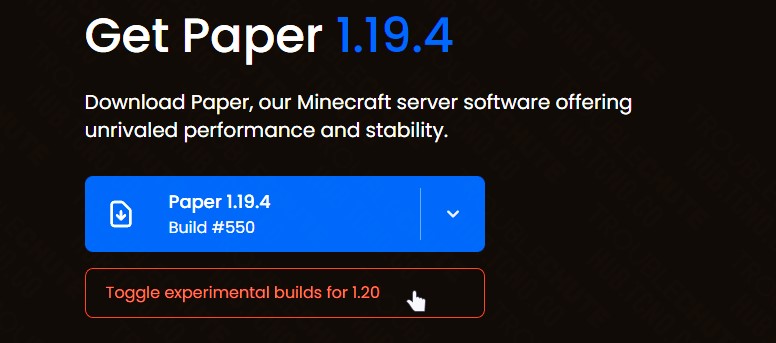
Once you have the necessary setup, you’ll need to download the official Minecraft server software. Follow these steps:
- Visit the Official Minecraft Website: Go to the Minecraft server download page.
- Choose the Version: Download the server software for the version of Minecraft you want to run. The server file will usually be a .jar file.
Step 3: Create a Dedicated Folder
To keep things organized, create a dedicated folder for your Minecraft server files:
- Create a New Folder: Name it something like “Minecraft Server” to easily identify it.
- Move the .jar File: Place the downloaded .jar file into this folder.
Step 4: Run the Server for the First Time
Before configuring your server, you need to run it to generate the necessary files:
- Open Command Prompt or Terminal: Navigate to the folder where you placed the server .jar file.
- Run the Server: Enter the following command: J
ava -Xmx1024M -Xms1024M -jar server.jar noguiReplaceserver.jarwith the name of the .jar file you downloaded. This command allocates 1 GB of RAM for the server. - Accept the EULA: After running the server for the first time, you’ll notice that a new file called
eula.txthas been created. Open it and change the lineeula=falsetoeula=trueto accept the End User License Agreement. Benefits of playing on private Minecraft servers, more details here.
Step 5: Configure Your Server
Now that you have accepted the EULA, it’s time to configure your server settings:
- Open server.properties: This file contains various settings that control how your server behaves. You can modify settings such as the server name, game mode, difficulty, and maximum players.
- Server Name: Change the
motdvalue to customize your server name. - Game Mode: Adjust the
gamemodevalue (0 for survival, 1 for creative). - Difficulty: Modify the
difficultyvalue (0 for peaceful, 1 for easy, 2 for normal, 3 for hard). - Max Players: Set the
max-playersvalue to control how many players can join your server.
- Server Name: Change the
- Save Changes: After making your desired changes, save the
server.propertiesfile.
Step 6: Port Forwarding
To allow players from outside your local network to join your server, you need to set up port forwarding:
- Access Your Router Settings: Open a web browser and enter your router’s IP address (usually something like 192.168.1.1 or 192.168.0.1).
- Log In: Enter your router’s admin credentials (default credentials can usually be found on the router itself).
- Find Port Forwarding Settings: Look for the section labeled “Port Forwarding” or “Virtual Server.”
- Add a New Rule: Create a new port forwarding rule for Minecraft:
- Service Name: Enter a name (e.g., Minecraft).
- Port Range: Set both the starting and ending port to
25565(the default Minecraft port). - Local IP: Enter the local IP address of the computer running the server.
- Protocol: Choose TCP/UDP or simply TCP.
- Save Changes: Apply the changes and restart your router if necessary.
Step 7: Start Your Server
Now that your server is configured and port forwarding is set up, you can start the server again:
- Run the Server: Open Command Prompt or Terminal and navigate to the server folder.
- Execute the Command: Enter the same command you used earlier to run the server.
Step 8: Connect to Your Server
Once the server is running, you can connect to it:
- Launch Minecraft: Open your Minecraft client.
- Click on Multiplayer: Then click on “Add Server.”
- Enter Server Details:
- Server Name: Name it whatever you like.
- Server Address: Enter your public IP address (you can find it by searching “What is my IP” in a web browser) followed by
:25565.
- Join the Server: Click “Done” and then select your server to join.
Step 9: Invite Friends to Join
To invite friends to your server, share your public IP address with them. Ensure they follow the same steps to connect to the server.
Step 10: Maintain and Customize Your Server
Once your server is up and running, you can maintain it by regularly updating to the latest Minecraft version and using plugins or mods to enhance the gameplay. Here are some resources for further customization:
- Bukkit/Spigot: Popular server software that allows you to use plugins to enhance your server’s features. Visit Bukkit or Spigot for more information.
- Server Management Tools: Consider using tools like Multicraft or AMP for easier server management.
Setting up your own Minecraft server may seem daunting at first, but by following these steps, you can create a personalized gaming environment for you and your friends. With the ability to configure settings and install plugins, the possibilities are endless. Enjoy your new Minecraft server!